
AGILE CODEX USER GUIDE
Magento 2 Recent Orders — User Guide
Configure purchase notifications with ACx Recent Order. The extension displays eligible recently ordered products in a storefront popup, with a product link and configurable message. This guide reflects the installed module's current controls.
1. Install on staging first
Back up the application and database. Check the package's supported Magento/PHP versions, deploy the module to app/code/Acx/RecentOrder, and follow your normal Magento deployment process. Run installation commands on staging before scheduling a production deployment.
php bin/magento module:enable Acx_RecentOrder
php bin/magento setup:upgrade
php bin/magento setup:di:compile
php bin/magento setup:static-content:deploy -f en_US
php bin/magento cache:clean config block_html full_page
Deploy the locales used by your storefront. Do not run a global setup upgrade on a shared installation without reviewing other pending module changes. Leave the extension disabled until its configuration and eligible purchase data have been checked.
2. Open configuration and select scope
- Sign in to Magento Admin with permission to configure Recent Order.
- Go to Stores → Configuration → Agile Codex → Recent Order.
- Select the website or store view you want to change.
- Clear Use Default or Use Website for any overridden field.
- Set Extension Enabled to Yes for the intended scope and click Save Config.
On the shared demo, select Recent Orders Demo. Other storefronts inherit the disabled default.
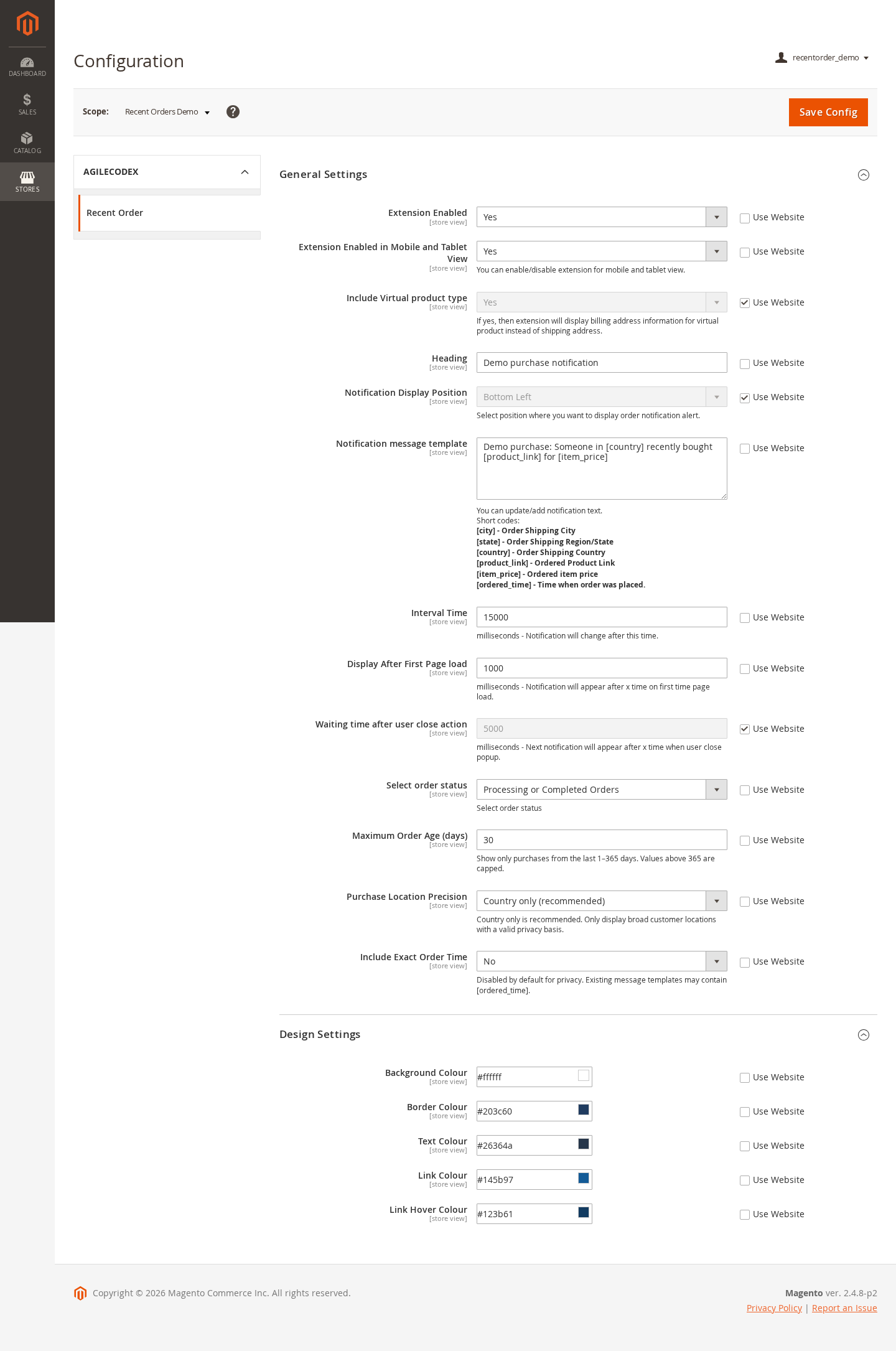
3. Set messages and notification timing
- Heading: the popup title.
- Notification Display Position: choose a supported screen position.
- Notification message template: write the message and insert supported placeholders.
- Interval Time: the configured notification interval, in milliseconds.
- Display After First Page load: initial delay, in milliseconds.
- Waiting time after user close action: cooldown after a visitor closes a popup, in milliseconds.
- Extension Enabled in Mobile and Tablet View: control display on smaller screens.
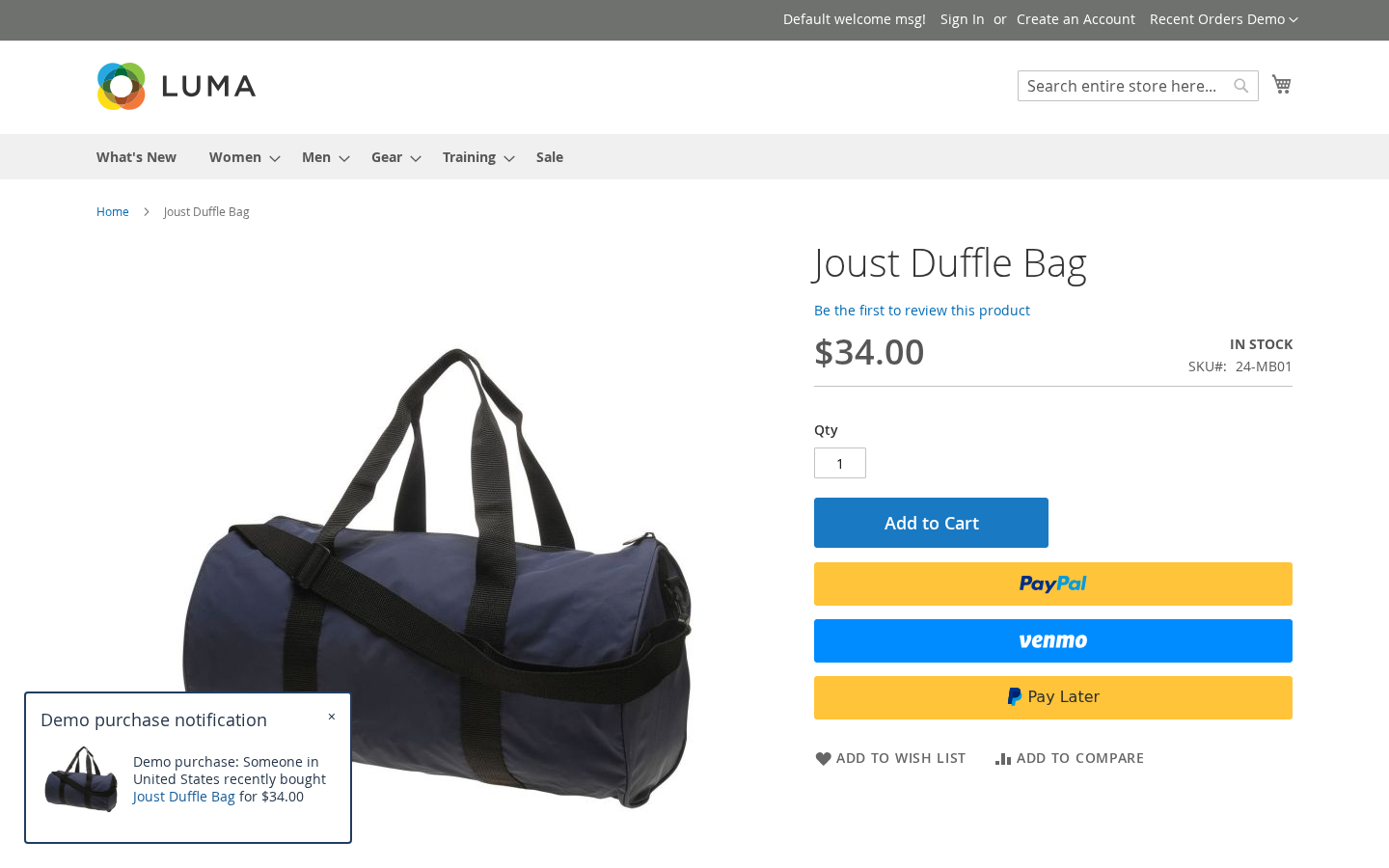
Example message: Someone in [country] recently bought [product_link] for [item_price]. The screenshot demo prefixes its message with “Demo purchase” because its data is synthetic.
| Placeholder | Meaning |
|---|---|
| [product_link] | Link to the purchased product |
| [item_price] | Purchased item price, formatted for the current storefront currency |
| [country] | Broad purchase location |
| [state], [city] | Location detail, only when allowed by Purchase Location Precision |
| [ordered_time] | Order timestamp, only when Include Exact Order Time is enabled |
4. Choose eligible purchases
Completed Order selects completed purchases. The broader status option includes processing and completed purchases; it does not include pending or canceled orders.
Maximum Order Age (days) limits purchase freshness to 1–365 days. The feed considers up to 20 recent eligible orders from the current store and chooses an eligible visible product from each. Include Virtual product type permits virtual items and uses billing information where applicable.
The server caches the feed for up to 60 seconds. After a browser has shown all available notifications, a new rotation can begin after a quiet period of at least 60 seconds, or the longer applicable configured interval. A single eligible purchase may therefore appear again later.
5. Review location and time disclosure
Use Country only for broad location display and keep Include Exact Order Time disabled unless you have a reason to publish more detail. Review custom templates as well as these settings. The feed omits customer names, email addresses and complete order numbers.
6. Match the popup to your storefront
Open Design Settings and choose Background Colour, Border Colour, Text Colour, Link Colour and Link Hover Colour. Use readable contrast, save the configuration and clean relevant Magento caches after changing the design.
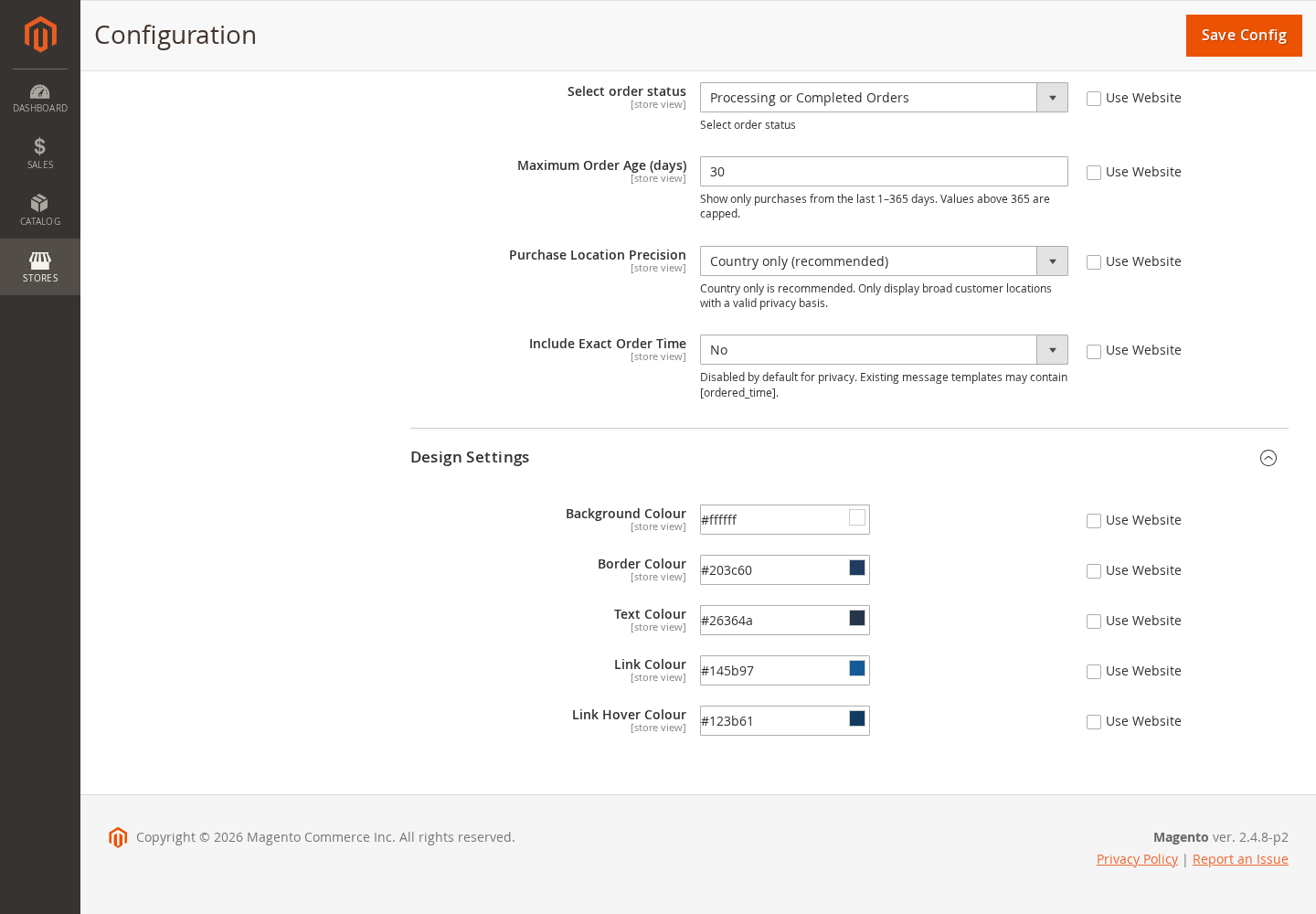
7. Verify desktop and mobile behavior
- Open the intended store view in a fresh browser session.
- Wait for the initial display delay and feed request.
- Check the title, message, product image, product link and location detail.
- Close a notification and verify the configured cooldown.
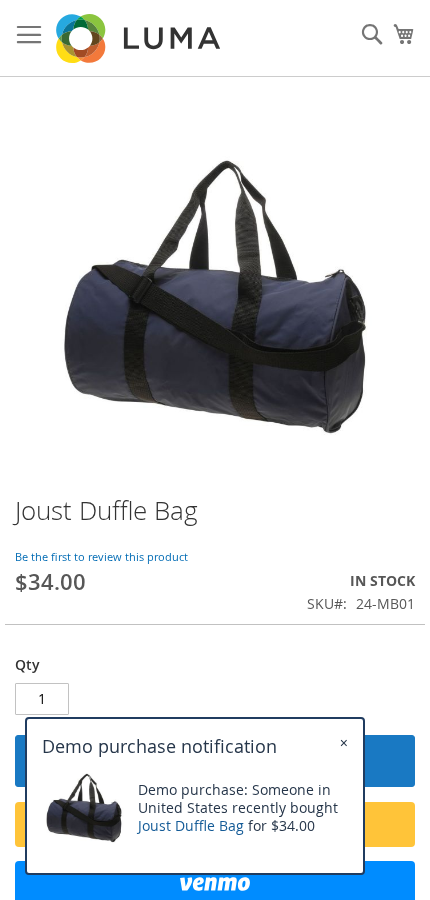
- Test mobile width with mobile/tablet display enabled, then test your own theme.
8. If no notification appears
- Confirm the module is enabled at the store view you are visiting.
- Check that the same store has a recent processing or completed purchase matching the status and age settings.
- Check product availability/visibility and virtual-product settings.
- Allow for the 60-second feed cache and the configured browser cooldown. Try a fresh session.
- Inspect browser network/console errors and Magento logs. Failed feed requests retry with increasing delays, up to five minutes.
- Validate your theme, deployed static assets and Content Security Policy. Do not weaken CSP just to hide an error.
Contact support@agilecodex.com with your module version, Magento/PHP version, store scope and reproducible steps.
Ready to add Recent Orders to your store?
Add the single-site extension license to your cart. You can review your selection before checkout.