
User Guide (Manual) for Inventory Management Extension
Who This Guide Is For
This user guide is designed for Magento 2 store owners, warehouse managers, inventory controllers, and operations teams who manage stock across multiple warehouses or physical locations. It is especially useful for B2B, wholesale, and high-volume stores requiring structured stock movement, transfers, and audit tracking.
Key Features of Inventory Management
- Multi-Warehouse Inventory: Manage stock across multiple warehouses and locations.
- Warehouse-Wise Product Stock: Track physical, available, reserved, and transferable quantities.
- Stock Transfers: Move inventory between warehouses with full audit history.
- Bulk Stock Edit: Update stock quantities in bulk for faster operations.
- Stock Movement Log: Maintain a complete history of stock changes.
- Inventory Routing: Define warehouse priority for sales and shipment routing.
- Low-Stock & Ideal Stock Levels: Configure warnings and optimal stock thresholds.
- Barcode Support: Assign and manage multiple barcodes per product.
- Stock Take (Cycle Count): Perform partial or full stock audits with progress tracking.
INVENTORY MODULE OVERVIEW
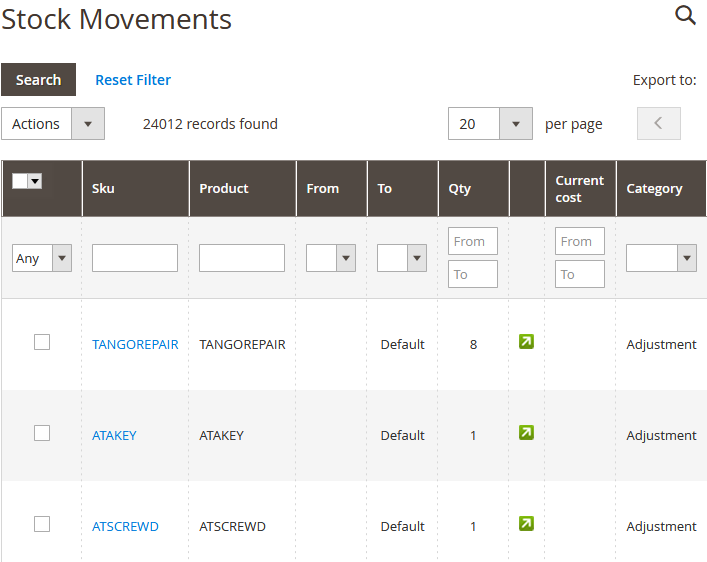
The Inventory Management module provides granular control over stock operations, allowing businesses to trace every inventory change across warehouses, transfers, adjustments, and sales flows.
- Movement-Based Tracking: Every stock change is logged.
- Warehouse Visibility: Know exactly where inventory is stored.
- Operational Accuracy: Prevent overselling and stock mismatches.
WAREHOUSE TRANSFER MANAGEMENT
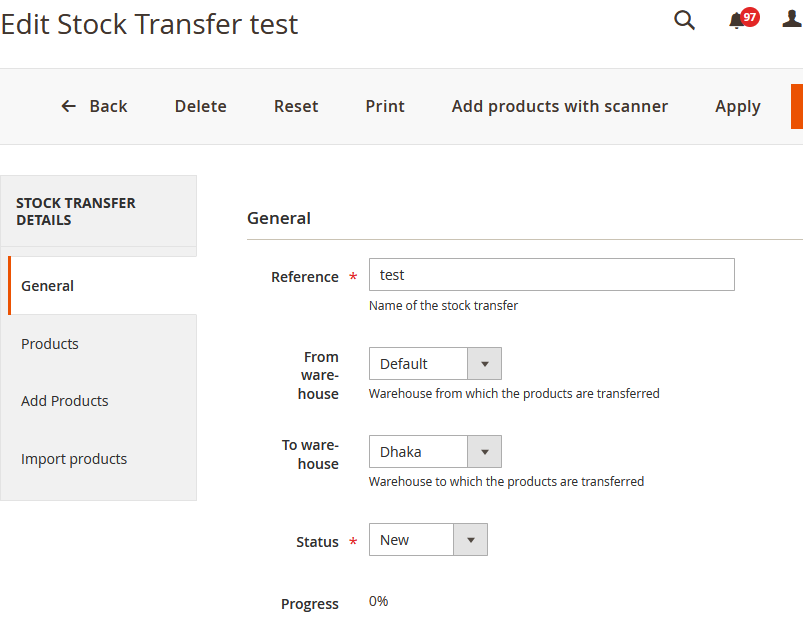
- Create Transfers: Move stock between warehouses.
- Add Products Manually or via Import.
- Status-Based Transfers: Draft, processing, completed.
- Transfer History: Full traceability of stock movement.
INVENTORY CONFIGURATION
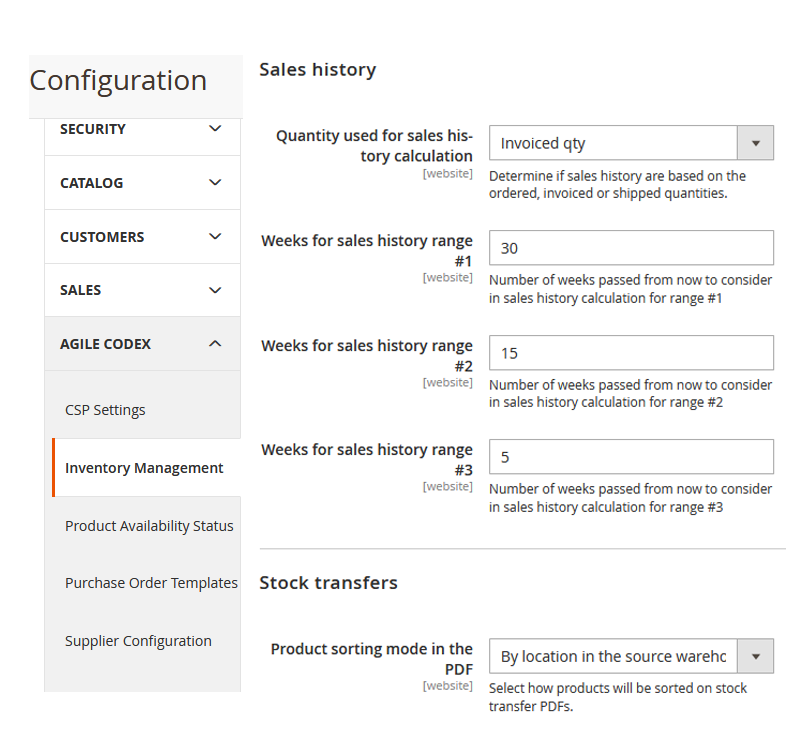
Configure inventory behavior from AgileCodex → Inventory → Configuration.
- Enable / Disable Inventory Module
- Default Warehouse Settings
- Transfer & Routing Rules
- Low-Stock Warning Thresholds